
- For PC
- For MAC
- For Linux
- OS: Windows 10 (64 bit)
- Processor: Dual-Core 2.2 GHz
- Memory: 4GB
- Video Card: DirectX 11 level video card: AMD Radeon 77XX / NVIDIA GeForce GTX 660. The minimum supported resolution for the game is 720p.
- Network: Broadband Internet connection
- Hard Drive: 23.1 GB (Minimal client)
- OS: Windows 10/11 (64 bit)
- Processor: Intel Core i5 or Ryzen 5 3600 and better
- Memory: 16 GB and more
- Video Card: DirectX 11 level video card or higher and drivers: Nvidia GeForce 1060 and higher, Radeon RX 570 and higher
- Network: Broadband Internet connection
- Hard Drive: 75.9 GB (Full client)
- OS: Mac OS Big Sur 11.0 or newer
- Processor: Core i5, minimum 2.2GHz (Intel Xeon is not supported)
- Memory: 6 GB
- Video Card: Intel Iris Pro 5200 (Mac), or analog from AMD/Nvidia for Mac. Minimum supported resolution for the game is 720p with Metal support.
- Network: Broadband Internet connection
- Hard Drive: 22.1 GB (Minimal client)
- OS: Mac OS Big Sur 11.0 or newer
- Processor: Core i7 (Intel Xeon is not supported)
- Memory: 8 GB
- Video Card: Radeon Vega II or higher with Metal support.
- Network: Broadband Internet connection
- Hard Drive: 62.2 GB (Full client)
- OS: Most modern 64bit Linux distributions
- Processor: Dual-Core 2.4 GHz
- Memory: 4 GB
- Video Card: NVIDIA 660 with latest proprietary drivers (not older than 6 months) / similar AMD with latest proprietary drivers (not older than 6 months; the minimum supported resolution for the game is 720p) with Vulkan support.
- Network: Broadband Internet connection
- Hard Drive: 22.1 GB (Minimal client)
- OS: Ubuntu 20.04 64bit
- Processor: Intel Core i7
- Memory: 16 GB
- Video Card: NVIDIA 1060 with latest proprietary drivers (not older than 6 months) / similar AMD (Radeon RX 570) with latest proprietary drivers (not older than 6 months) with Vulkan support.
- Network: Broadband Internet connection
- Hard Drive: 62.2 GB (Full client)
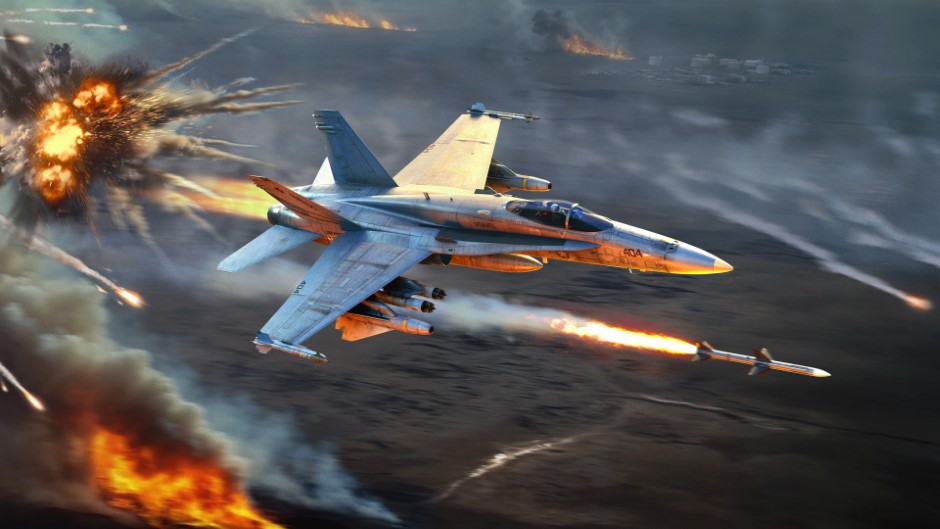
The Tusk Force major update is not complete without interface refinements! Today, we’d like to tell you about improvements made to aircraft radars, helping you to interact with them in a more visual and convenient way, regardless of whether you are already familiar with them or are just learning. Let’s start!
How it will work
Before the changes we’re talking about today, players had to use and remember a large number of key binds to use radars. To simplify this, part of the radar control logic will be accessible from the HUD, similar to how it was done for ground-based anti-aircraft vehicles when we added the Radar Control Screen.
The radar on the screen for aircraft in the Tusk Force major update will be interactive, making it possible to click it using the mouse cursor (when activating the “Show mouse cursor” button). You’ll be able to select targets on the radar by simply clicking on them, double-click to immediately capture the desired target, change the mode and range of the radar by clicking on the inscriptions, and when holding the mouse button down, move the radar’s scan area and/or acquisition cursor (with “Cyclic target switching” turned off).
In addition to this, separate buttons can be displayed around the radar screen, which can be used to activate many radar functions (changing mode, scale, etc) with the click of your mouse.
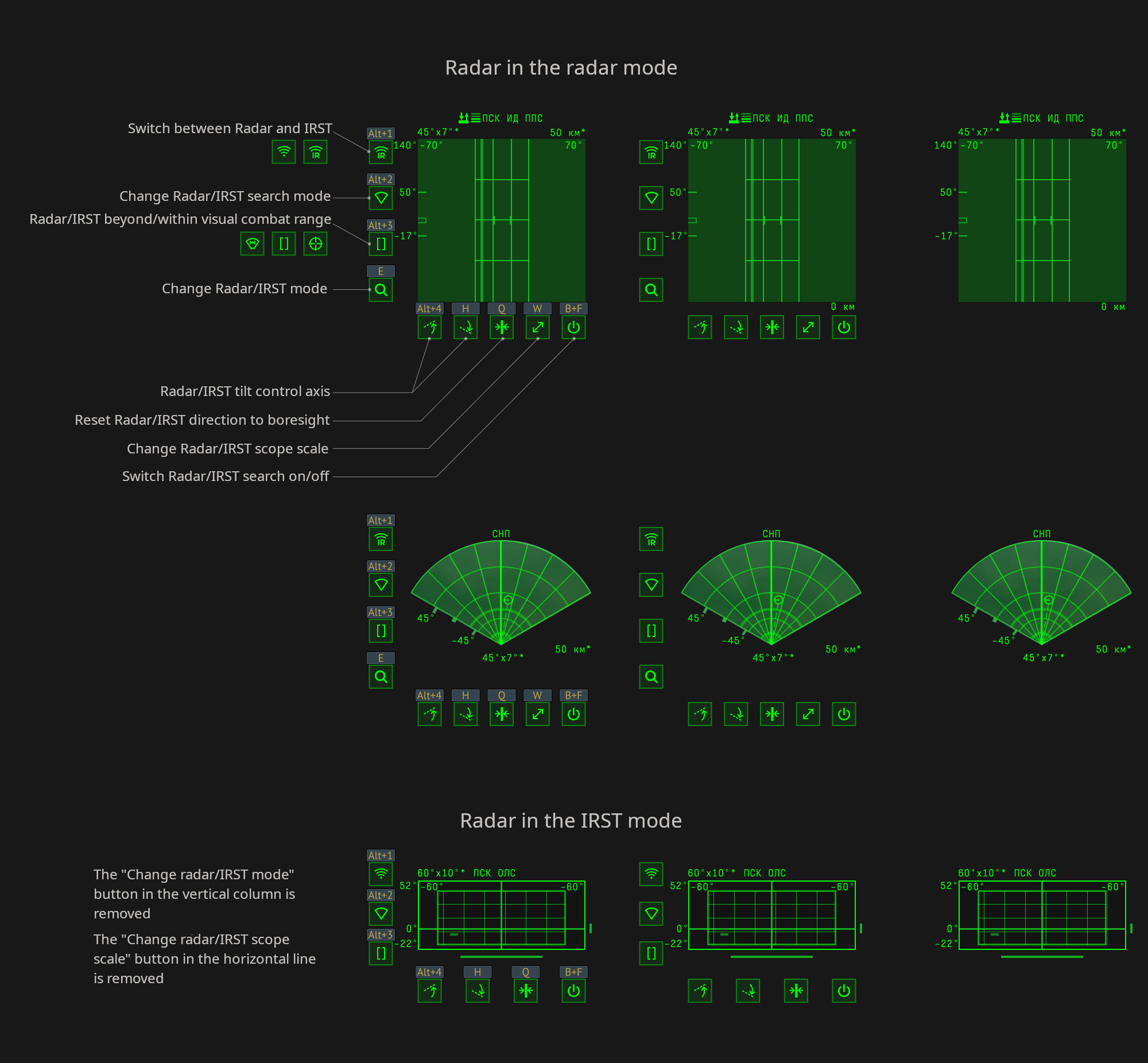
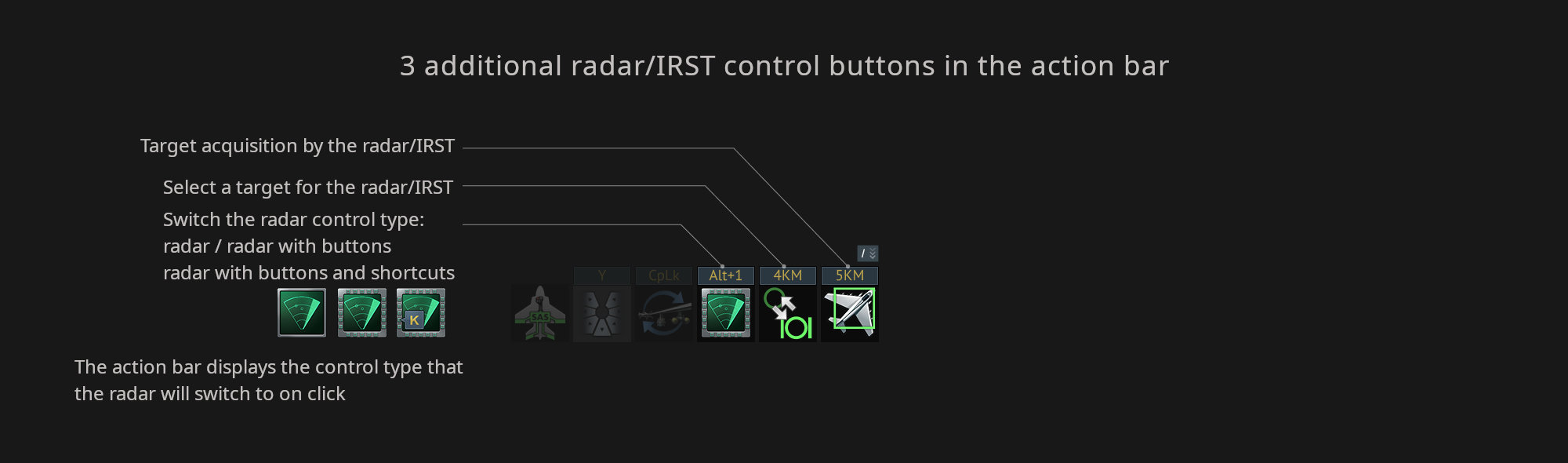
To enable these buttons around the radar, click “Switch the radar control type” in the action bar. Once enabled, and by default, the assigned keybinds will be displayed above the buttons that appear. When clicking the button on the action bar again it will hide the keybinds above the buttons, and then clicking it again will hide the buttons altogether.
There’s also two more actions in the action bar: “Lock Radar/IRST on target” and “Select Radar/IRST target to lock” (which only works when the “Cyclic target switching of aircraft radar” option is enabled in the settings).
These improvements are intended to allow newcomers to quickly master the complexity of how radars work, and for experienced players to use the radar to its maximum ability — and even free up a few keybinds.
That’s it for today, we have some more dev blogs still to come, so make sure to be on the look out for those!


Comments (18)
Comments will be premoderatedIt's cool I guess, but honestly you need this stuff bound to keys to use them quickly in top tier anyway. if anything we need more assistance and automated stuff in top tier, as currently you kinda need to have 4 brains and 6 hands sometimes. having a dedicated IR and radar missile keybind would be super nice IMO, swapping weapons take too long. also the selected weapons should stay selected when exiting the weapon selector. pythons on the F-5 FCU aren't the default missile as an example.
Can we get an option to determine the starting position of the cursor when we click the “Show mouse cursor” button? In the heat of battle every moment counts. I'd rather have it start on the radar screen than in the center of the screen
Love this! Glad to see this stuff improved in terms of ease of access. I have keybinds but sometimes even they can get jumbled.
We could get a keybind to go directly to HMS and also some way to unbind the F1 from the help menu to use it elsewhere.
This should make it easy to start launching missiles at the beginning but how about halfway through the match?
Submit a complaint